Pages

Showing posts with label vmware. Show all posts

November 4, 2012

My path to passing VCP-510 exam

Today i took the VMWare VCP-510 exam and PASSED, so i felt i should give a brief overview of my thoughts on the exam before starting on the VCAP-DCA.

Initially i started studying for the ESXi 4 exam by purchasing the Mastering vSphere 4 book by Scott Lowe. Once vSphere 5 came out i was able to get my employer to send me to the class and i shifted my focus to vSphere 5. I attended the Global Knowledge Install, Configure, & Manage class to get started. This class alone will not help you pass the exam, i felt the class was more of a this is what vSphere is type of class. After that class i purchased Scotte Lowe's Mastering vSphere 5 and began studying. This book was very thorough and quickly became a reference for me when i was unsure about something i read from other sources. Next i purchased the Sybex VCP5 book to get more focus on what to expect on the exam. This book was pretty good in testing different concepts and i would recommend. In addition to this book i received a free copy of vSphere 5.1 Clustering Deep Dive at VMWorld in San Francisco so i started using this to learn more about HA. The only other sources i used were VMWare official Documentation and i found completed VCP Blueprints in PDF format that i was browse through from time to time. I believe one of the biggest things that helped me was the fact that i was able to setup a complete lab environment with old equipment at work. Having a test environment to practice was critical in my success. Overall i spent Approximately 3 months studying for this exam. I think i was as prepared as i could have been to take the exam so i went ahead and signed up.

For obvious reason i can't go into details about the exam, but i will try to describe what i can. Overall i think the exam was fair, however there were a few questions that i felt had multiple options. I passed the exam but i think i could have done much better if there weren't so many pick 2, pick 3 type questions. I hate those questions because even if i get 2 of the 3 correct the whole question is marked wrong. Once i got to the last questions i was pretty confident i passed and was relieved when i say CONGRATULATIONS on the screen. Hopefully in another 3-4 months i will be able to post a "My path to passing the VCAP-DCA exam".


October 4, 2012

Troubleshooting vCenter 5.1 Single Sign On Installation Problems

During the installation of vmware vCenter 5.1 Single Sign On i couldn't get past the step requesting the database information. I was installing SSO in a development environment using sql server 2008 express with the default instance name of vim_sqlexp. During the install i kept getting errors saying it couldn't find the instance of sql server. Below are the steps i used to resolve this issue.

1. Open SQL Server Configuration Manager and make sure the TCP/IP protocol is enabled and make sure that the port is listed as 1433.
2. On the SSO Database Information Screen do not specify the instance name. Even if you are using a database instance only type the server name, make sure the port and database is correct and click next.
3. The install script should automatically find the instance that contains the RSA database that is required by the Single Sign On Service.


October 2, 2012

Suppressing SSH warning on ESXi hosts

By default ESXi 5 hosts will display a notification when you turn on the SSH service. It is good practive to limit the amount of service that are open on your server, however i think there are a lot of very compelling reason to enable this SSH. The steps below will show you how to suppress the warning notification on ESXi hosts.

If you want to disable the warning and the exclamation mark do the following:
  1. Select the ESXi host in the Inventory tab.
  2. Click the Configuration tab.
  3. Under Software, click Advanced Settings.
  4. Click UserVars.
  5. Change the value of UserVars.SuppressShellWarning to 1.
  6. Click OK.

September 25, 2012

esxtop Demystified Part 1

      Vmware provides a tool called esxtop to monitor the performance of vSphere esxi hosts. This tool is capable of monitoring all aspects of an esxi host like cpu, memory, disk, network i/o. The problem is when a new vmware administrator runs the program for the first time it looks a bit intimidating. Lets tackle that problem by discussing what some of the information on the screen means.

When you first run the program you will be in the cpu view. This particular view will give you stats on the various processes that are currently running on your system. Along the top of the screen you will see things like uptime, the number of worlds, VM's, vCPUs, and CPU load average.


However if you are interested in other statistics you need to know the commands necessary to get to those screens. Pressing the "h" key will display the help menu. This menu will give you a list of all the available Interactive commands available.


Lets say we want to access network stats. All we would do is press the "n" key on the home screen and it would display each of your portgroups and the statistics related to it. You can try a few of the other switch displays to get a fell for switching between the screens.


Lets go back to the cpu view and discuss a few of the columns.


Below are the definitions for each of the columns on the default esxtop screen.


  • ID -  Unique world ID. A world is an ESXi VMkernel schedulable entity, similar to a process or thread in other operating systems.
  • GID - Resource group world id.  If you press e in esxtop and enter the number of the GID, this GID will expand itself to show all processes in that group.
  • Name - Name of the world or resource pool
  • NWLD - The number of worlds in the group, when this number is greater than one the row can be expanded to get more information on each world.
  • %USED - Percentage of CPU that is used by that world or group
  • %RUN - When this value is near the number of vCPUS X 100%, it means that all vCPUs in the VM are busy. 
  • %SYS - percentage of time spent by system services on behalf of the world.
  • %WAIT - Represents the percentage of time the VM was waiting for some VMKernel activity to complete such as I/O before it can continue.
  • %VMWAIT -
  • %RDY - Percentage of time that the VM is ready to execute commands, but has not yet been scheduled for CPU time due to contention with other VM's
  • %IDLE - percentage of time the vCPU world is in idle loop
  • %OVRLP - percentage of time spent by system services on behalf of other worlds.
  • %CSTP - Percentage of time that the VM is ready to execute commands but that it is waiting for the availability of multiple VPUs as the VM is configured to use multiple vCPUs.
  • %MLMTD - Percentage of time the world was ready to run but deliberately wasn't scheduled because that would violate the explicit CPU limit settings. 
  • %SWPWT - Percentage of time the world is waiting for ESX VMKernel swapping memory. If this is high it means the VM is swapping memory.

This should be a great intro into the basics of using esxtop. Look forward to Part 2 coming soon.

September 19, 2012

Setting vlan 0 using the ESXi 5 DCUI

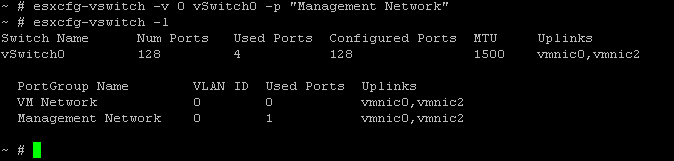
Have you ever tried to change the vlan to 0 from the console of ESXi 5.0? Well if you have tried you know that it gives you an error saying the only valid range is 1-4094. If you need to set the vlan to 0 you will need to enable the ESXi shell and hit + to access the login prompt. Once you login follow the following steps:

1. Type esxcfg-vswitch -l to list the current config.


2. Lets say we want to change port group "Management Network" to be on vlan0
3. Type esxcfg-vswitch -v 0 vSwitch0 -p "Management Network" to configure the port group.


4. Thats it! If you type esxcfg-vswitch -l again you should see the VLAN ID changed.